

Troubleshooting
This section contains instructions on how to submit a support request and troubleshooting steps. The information gathered will allow the Open Banking Team to further assist with rectifying issues for American Express Open Banking APIs.
How to Raise an Issue for American Express Open Banking APIs
Submitting a Support Request
To submit a support request, follow the steps listed below:
- Send an email to the [American Express Open Banking](mailto:openbanking@devmail.americanexpress.com?subject=Support Request&body=Hello,%0D%0A%0D%0AI would like to submit a support request for:%0D%0A%0D%0AThanks,) Team.
- Enter the subject in the Subject Line. Include the Environment (Sandbox /Prod) and the issue description.
- Include the information gathered from the troubleshooting steps listed below.
Troubleshooting Steps
To provide more details on the cause of the issue, follow the troubleshooting steps below to gather the information needed:
- Environment-Determine the environment that the issue occurs (Sandbox /Production).
- Device Type-Identify the type of device used.
- Tablet: Samsung, Apple, Microsoft, or Other. Include information on the browser used.
- Mobile: Android, iPhone, Windows, Other. Include information on the browser used.
- Desktop: Google Chrome, Internet Explorer, Edge, Mozilla Firefox, Safari, or Other.
- Process Flow-Determine where in the process flow the issue occurs:
- Grant Access Journey
- Revoking existing acess
- Calling APIs
A) Grant Access Journey
If the issue occurs during the Grant Access Journey, please provide the following information:
- User ID(s)
- Customer’s first and last name
- Number of Cards held by the Customer
- Customer’s Card(s) status (open, cancelled, other, etc.) - Request that the Customer connects to americanexpress.com and provide the status of their Card(s)
- Error(s) received with the description and screenshot
- Timestamp(s)
- Stage information
Stage Information
Depending on the stage in which the error occurs on the Grant Access Journey, provide additional information listed in the sections below.
The Developer tools on the browser needs to be opened in order to view stage information.
Below are the steps to open the Developer tools from the browser window:
- Click on Options (…) from the browser menu
- Select More Tools
- Click on Developer tools
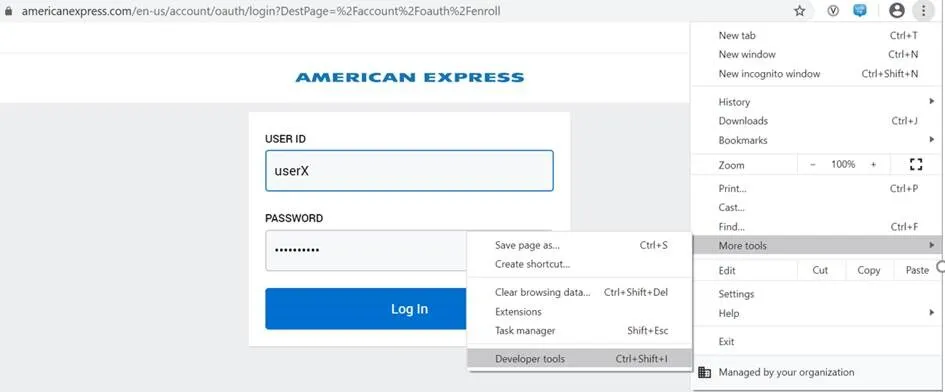
Stage 1: Landing on the URL
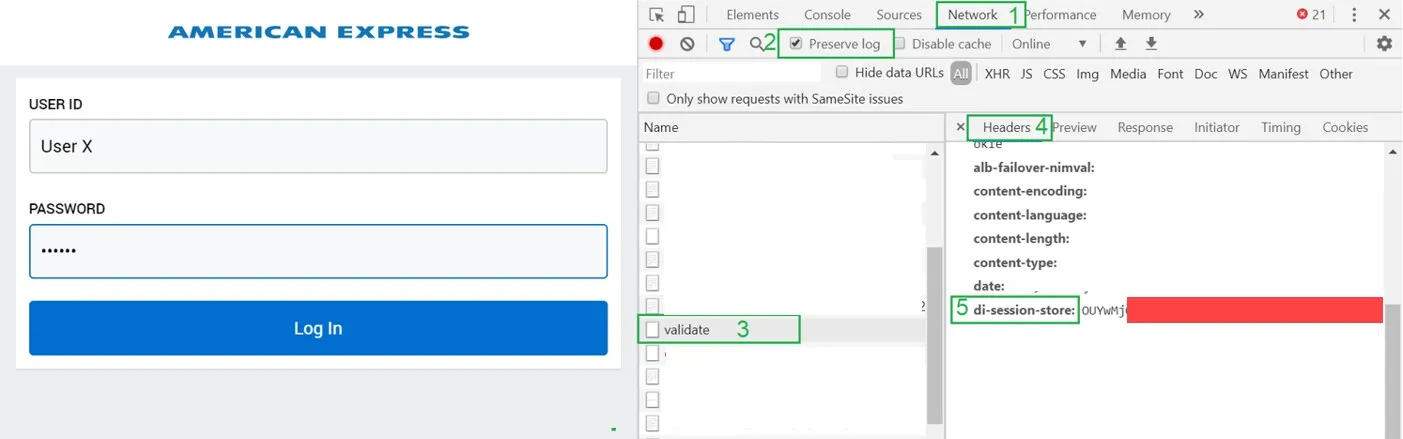
If the issue occurs when landing on the URL, provide the di-session-store from validate.
Follow the steps below:
- Open the browser window (do not call the URL).
- Open the Developer tools.
- Click on the Network section (1).
- Enable Preserve log (2).
- Call the URL.
- Locate and click the name validate (3).
- In the sub section Headers, expand the Response Headers, and locate the di-session-store field (4).
- Select and copy the value from the field (5). NOTE: This field contains a long string. Ensure that the entire value is selected.
Stage 2: After or During Login
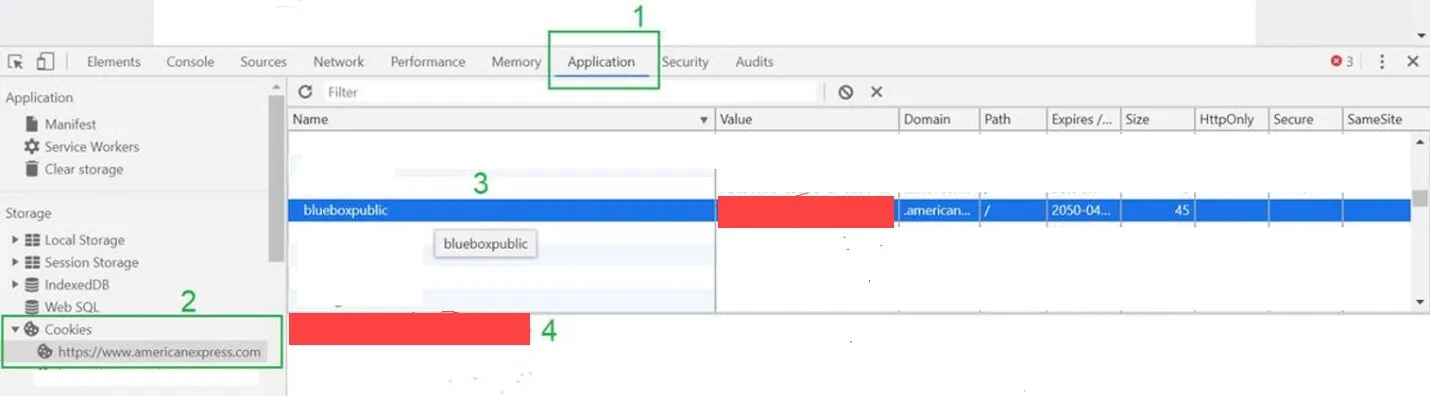
If the issue occurs after or during login, provide the blueboxpublic cookie value.
Follow the steps below:
- Open the Developer tools
- Login to the Grant Access Journey
- From the Developer tools, click on Application (1)
- Expand the Cookies section and click on the cookie: https://www.amercianexpress.com (2)
- Locate the cookie blueboxpublic (3) IMPORTANT: The name of the cookie is in lowercase characters.
- Copy the value from the cookie (4)
Stage 3: On the Display Cards Page
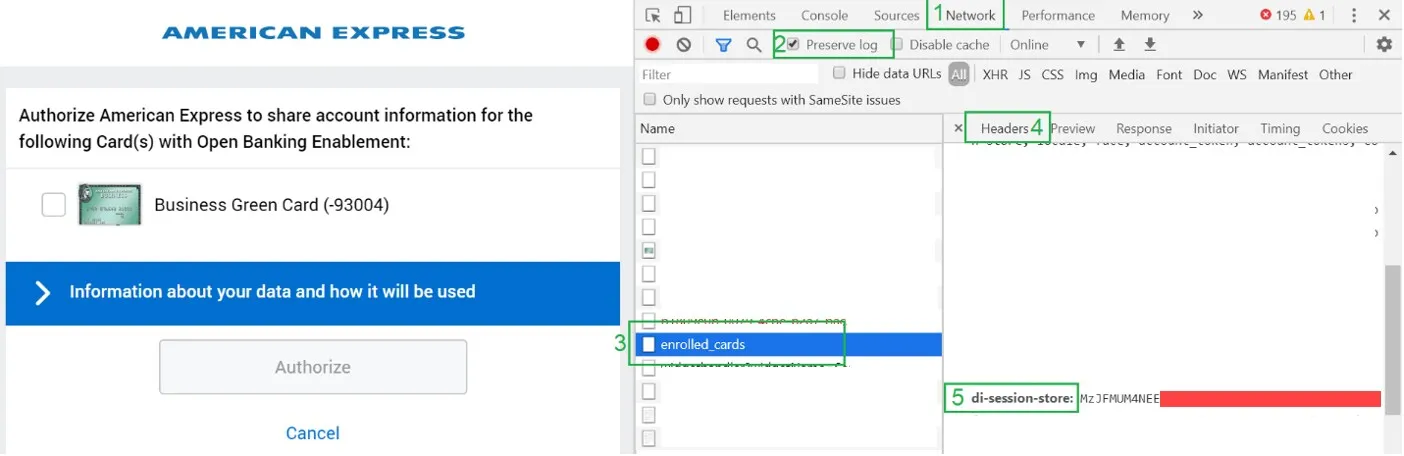
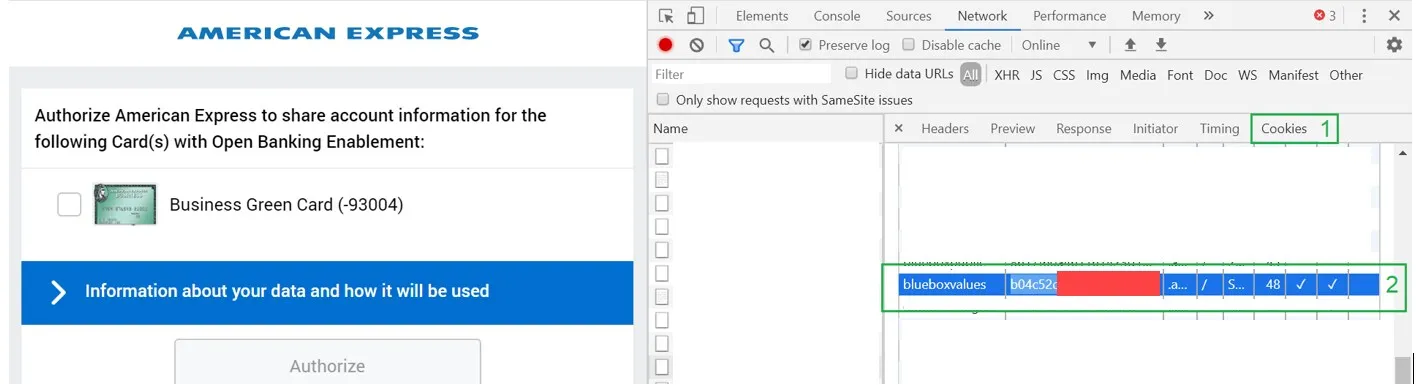
If the issue occurs on the Display Cards page, provide the blueboxvalues cookie value along with the di-session-store value from enrolled_cards.
Follow the steps below to obtain the di-session-store value from enrolled_cards:
- Open the Developer tools.
- Click on the Network section (1).
- Enable Preserve log (2).
- Locate and click on the name enrolled_cards (3).
- In the sub section Headers, expand the Response Headers, and locate the di-session-store field (4).
- Select and copy the value from the field (5). NOTE: This field contains a long string. Ensure that the entire value is selected.
Follow the steps below to obtain the blueboxvalues cookie from enrolled_cards:
- Within the same session from the Developer tools, click on Cookies (1)
- Locate the cookie blueboxvalues (2) IMPORTANT: The name of the cookie is in lowercase characters.
- Copy the value from the cookie
Stage 4: After Authorizing Cards
If the issue occurs after authorizing Cards, provide the blueboxvalues cookie value along with the di-session-store value from enroll.
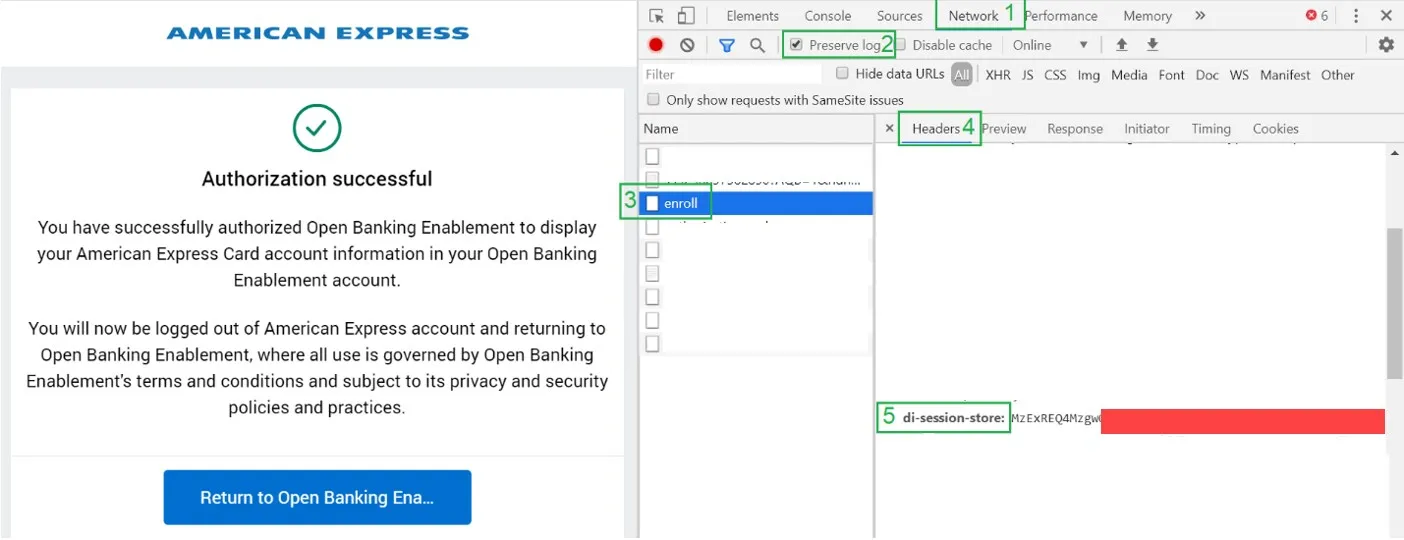
Follow the steps below to obtain the di-session-store value from enroll:
- Open the Developer tools.
- Click on the Networksection (1).
- Enable Preserve log (2).
- Locate and click on the name enroll (3).
- In the sub section Headers, expand the Response Headers and locate the di-session-store field (4).
- Select and copy the value from the field (5). NOTE: This field contains a long string. Ensure that the entire value is selected.
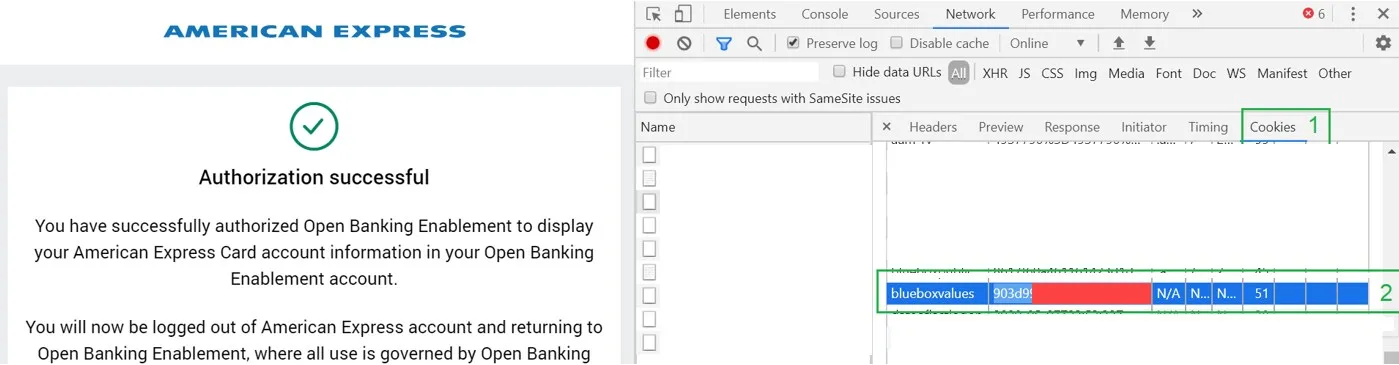
Follow the steps below to obtain the blueboxvalues cookie from enroll:
- Within the same session from the Developer tools, click on Cookies (1)
- Locate the cookie blueboxvalues (2) IMPORTANT: The name of the cookie is in lowercase characters.
- Copy the value from the cookie
B) Revoking Existing Access
If the issue occurs when revoking existing access, please provide the following information:
- User ID(s)
- Customer’s first and last name
- Error(s) received with the description and screenshot
- Timestamp(s)
C) Calling APIs
If the issue occurs when calling the APIs, please provide the following information:
- User ID(s)
- Customer’s first and last name
- Service(s) impacted
- Error(s) received with the description
- Timestamp(s)
- X-AMEX-REQUEST_ID(s)